

之前桌面一直在用 Ghostty,在普通的 x86 Linux 上基本没有遇到什么图形相关的问题。最近把 Orange Pi 5B 也装上 GNOME 当作一台小桌面使用,顺手安装 Ghostty,结果刚打开就翻车了🥲。
最后发现问题不在 Ghostty 本身,而是 RK3588 的 Mali-G610 在当前 Mesa/Panfrost 下只能提供 Desktop OpenGL 3.1,而新版 Ghostty 需要 OpenGL 4.3。
这里简单记录一下安装、排查过程以及我最后使用的解决方法。
使用环境
| 项目 | 环境 |
|---|---|
| 开发板 | Orange Pi 5B |
| SoC | Rockchip RK3588S |
| 系统 | Armbian / Ubuntu 26.04 Resolute |
| 内核 | 6.1.115-vendor-rk35xx |
| 桌面 | GNOME / Wayland |
| GPU | Mali-G610 MC4 |
| GPU Kernel Driver | Panthor |
| Mesa | 26.0.8 |
| Ghostty | 1.3.0-dev |
这里使用 vendor 6.1 内核主要是因为还需要使用 RK3588 的 RKNPU。GPU 则通过 Armbian 自带的 panthor-gpu overlay 使用 Panthor。
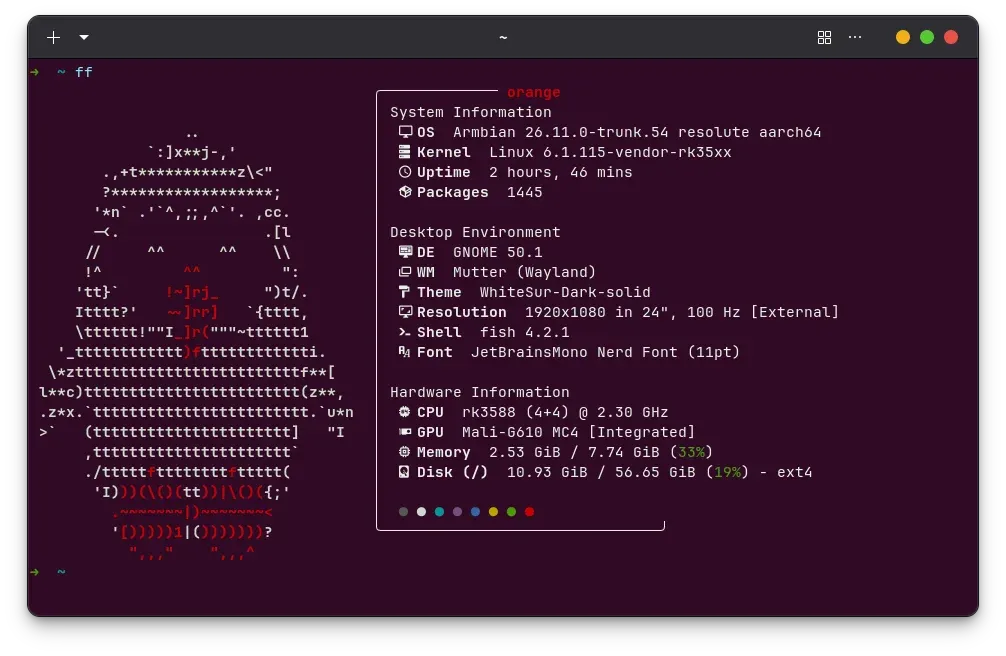
启用 Mali-G610 硬件加速
vendor 6.1 默认可能仍然使用 ARM 的 mali_kbase 驱动,这种情况下 Mesa 会退回 llvmpipe 软件渲染。
先确认系统中是否已经带有 Panthor:
modinfo panthor以及对应的 Device Tree Overlay:
find /boot/dtb-$(uname -r) \
    -type f \
    -iname '*panthor*'
我这里可以找到:
rockchip-rk3588-panthor-gpu.dtbo因此在 /boot/armbianEnv.txt 中加入:
overlays=panthor-gpu如果原本已经有
overlays=,不要再写第二行,直接把panthor-gpu追加到原来的列表中。
然后重启:
sudo reboot检查:
glxinfo -B正常情况下可以看到:
Accelerated: yes
OpenGL renderer string: Mali-G610 MC4 (Panfrost)
OpenGL core profile version string: 3.1 Mesa 26.0.8
这说明 Panthor + Panfrost 已经正常工作。
补充:确认 PanVK / Vulkan 是否正常
可以运行:
vulkaninfo --summary我的 Orange Pi 5B 上输出为:
deviceName = Mali-G610 MC4
driverName = panvk
apiVersion = 1.4.x
DRM render node 也可以确认:
for x in /sys/class/drm/renderD*/device/driver; do
    echo "$x -> $(readlink -f "$x")"
done
我的系统中分别是:
renderD128 -> rockchip-drm
renderD129 -> RKNPU
renderD130 -> panthor
这里 rockchip-drm 是显示控制器,RKNPU 是 NPU,而真正的 Mali-G610 是 panthor。
Ghostty 启动异常
GPU 硬件加速已经正常了,但是打开 Ghostty 后还是会提示:
Unable to acquire an OpenGL context for rendering.一开始还以为 Panthor 配置有问题,但是:
glxinfo -B明明显示:
Accelerated: yes
OpenGL renderer string: Mali-G610 MC4 (Panfrost)
后来才发现真正的问题是 OpenGL 版本。
Ghostty 从 1.2 开始,在 Linux GTK 版本中最低要求 Desktop OpenGL 4.3,而当前 Mali-G610 的 Mesa Panfrost 只能提供 OpenGL 3.1。
所以现在的情况其实是:
Mali-G610
    ↓
Panthor
    ↓
Panfrost
    ↓
OpenGL 3.1
    ↓
Ghostty 要求 OpenGL 4.3
    ↓
启动失败
GPU 没坏,驱动也没坏,只是目前提供的 Desktop OpenGL 版本不够。
尝试使用 Zink
由于 PanVK 已经可以提供 Vulkan 1.4,所以我又尝试使用 Zink:
Ghostty
    ↓ OpenGL
Zink
    ↓ Vulkan
PanVK
    ↓
Panthor
    ↓
Mali-G610
理论上这样可以通过 Vulkan 实现更高版本的 OpenGL。
强制指定 PanVK:
VK_DRIVER_FILES=/usr/share/vulkan/icd.d/panfrost_icd.json \
MESA_VK_DEVICE_SELECT=13b5:a8670005! \
MESA_LOADER_DRIVER_OVERRIDE=zink \
glxinfo -B
确实成功选到了 Mali-G610:
Device: zink Vulkan 1.4(Mali-G610 MC4 (MESA_PANVK))
Accelerated: yes
但是同时会出现:
doesn't support base Zink requirements:
feats.features.shaderClipDistance
最终 Zink 只能提供:
OpenGL version string: 2.1所以当前 Mesa 26.0.8 下还是不能用 Ghostty。
补充:以后 Mesa 更新后可能可以直接使用 Zink
Mesa 26.1 中已经加入了:
zink: emulate clip distance同时还有一些针对 PanVK + Zink 的修改。
所以以后系统 Mesa 更新到 26.1 或更高版本后,可以重新测试:
VK_DRIVER_FILES=/usr/share/vulkan/icd.d/panfrost_icd.json \
MESA_VK_DEVICE_SELECT=13b5:a8670005! \
MESA_LOADER_DRIVER_OVERRIDE=zink \
glxinfo -B
如果能够提供:
OpenGL core profile version string: 4.3或者更高,那么 Ghostty 就有机会直接通过:
Ghostty → Zink → PanVK → Panthor → Mali-G610进行 GPU 加速。
不过这只是解决了当前遇到的 shaderClipDistance 阻塞,不代表升级 Mesa 后一定可以直接达到 OpenGL 4.3,还是需要实际测试。
解决方法:让 Ghostty 使用 llvmpipe
Mesa 自带的软件渲染器 llvmpipe 能够提供 OpenGL 4.5:
LIBGL_ALWAYS_SOFTWARE=1 ghostty这样 Ghostty 就可以正常启动了。目前来看这是最简单、最稳定的方法。
包装一个脚本替代原本的 Ghostty
因为我的 /usr/bin/ghostty 是 dpkg 管理的,如果直接把 /usr/bin/ghostty 改成脚本,下次软件包更新时又会被覆盖。
这里可以使用 dpkg-divert。
首先把软件包原来的 Ghostty 重定向到:
/usr/bin/ghostty.real执行:
sudo dpkg-divert \
    --add \
    --rename \
    --divert /usr/bin/ghostty.real \
    /usr/bin/ghostty
然后创建新的 /usr/bin/ghostty:
printf '%s\n' \
    '#!/bin/sh' \
    'exec env LIBGL_ALWAYS_SOFTWARE=1 /usr/bin/ghostty.real "$@"' \
    | sudo tee /usr/bin/ghostty >/dev/null

sudo chmod +x /usr/bin/ghostty
现在:
ghostty实际上执行的是:
/usr/bin/ghostty
    ↓ wrapper
LIBGL_ALWAYS_SOFTWARE=1
    ↓
/usr/bin/ghostty.real
这样从 GNOME 菜单启动 Ghostty 也不需要额外设置环境变量。
而且以后通过 APT 更新 Ghostty 时,dpkg 会知道 /usr/bin/ghostty 已经被 divert,新的二进制仍然更新到 /usr/bin/ghostty.real,不会直接覆盖 wrapper。
查看 diversion:
dpkg-divert --list /usr/bin/ghostty如何恢复原来的 Ghostty?
先删除 wrapper:
sudo rm /usr/bin/ghostty然后取消 diversion:
sudo dpkg-divert \
    --remove \
    --rename \
    --divert /usr/bin/ghostty.real \
    /usr/bin/ghostty
这样 /usr/bin/ghostty.real 就会恢复成正常的 /usr/bin/ghostty。
总结
一开始看到 Ghostty 无法创建 OpenGL Context,还以为是 Orange Pi 5B 的 GPU 驱动有问题。
实际上 Panthor、Panfrost 和 PanVK 都工作正常:
Mali-G610
├── Panfrost → OpenGL 3.1
└── PanVK    → Vulkan 1.4
真正的问题只是 Ghostty 1.2+ 要求 OpenGL 4.3,而当前 RK3588 上的 Panfrost 达不到这一要求。
Zink 目前又受 PanVK shaderClipDistance 能力限制,因此最终先让 Ghostty 单独使用 llvmpipe:
LIBGL_ALWAYS_SOFTWARE=1 ghostty再通过 dpkg-divert + wrapper 把这个 workaround 固定下来。
等后续 Mesa / Zink 对 PanVK 的支持进一步完善之后,再尝试切回 GPU 渲染就可以了👻。
参考
-
Ghostty Documentation — Binaries and Packages
https://ghostty.org/docs/install/binary -
Ghostty 1.2.0 Release Notes — OpenGL 4.3 requirement
-
Ghostty Discussion #6073 — Software rendering fallback
https://github.com/ghostty-org/ghostty/discussions/6073 -
Ghostty Discussion #13907 — Raspberry Pi 5 / GLES / Vulkan renderer
-
Mesa Documentation — Panfrost / PanVK
https://docs.mesa3d.org/drivers/panfrost.html -
Mesa 26.1 Release Notes —
zink: emulate clip distance -
Armbian — Orange Pi 5B board configuration
https://github.com/armbian/build/blob/main/config/boards/orangepi5b.csc
喜欢的话,留下你的评论吧~